
DiskInsight / Guides
How to find and delete duplicate files on a Mac
Downloads that got saved twice. Photos exported into two folders. Build artifacts copied as backups. Duplicate files are almost invisible on a Mac until you add them up — and they add up fast.
Why your Mac fills up with duplicates
Duplicates happen slowly: saving a design twice under different names, downloading a video into Downloads and Documents, or leaving old project clones sitting around after a copy-paste. On a long-lived developer machine, it's not unusual for the duplicate count to hit tens of thousands — and the reclaimable space to reach tens of gigabytes.
Finder's built-in suggestions surface obvious photo duplicates, but it misses files
with different names that share the same contents. A copy of report.pdf
and report_final.pdf don't look the same to macOS.
The quick Terminal approach
If you want to try it yourself, you can list files and their MD5 hashes:
find ~ -type f -exec md5 -r + | sort | uniq -d -w 32That shows groups with matching hashes — but it's slow on big drives, and it gives you nothing to preview or act on. It's useful as a proof-of-concept, not a daily tool.
The better way: content-hash + preview + staging
A proper duplicate finder should hash file contents, group them, show you exactly how many bytes each group would reclaim, and let you preview every file in a group before you decide.
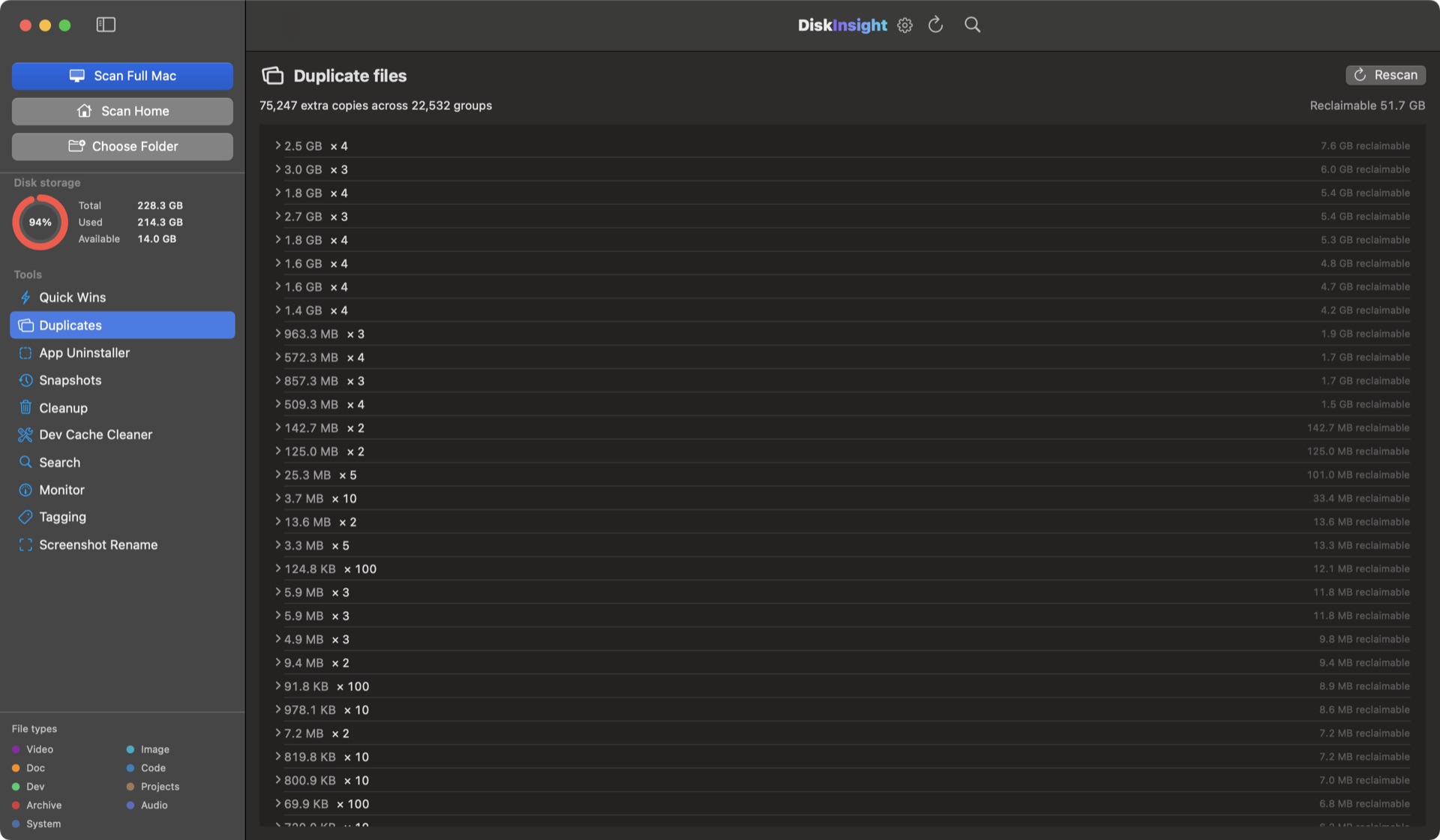
That's what DiskInsight's Duplicate Finder does. On a full Mac scan it found 75,129 extra copies across 22,502 groups — all grouped, previewable, and ready to stage to the Trash with one click.
- Content-addressed: catches copies with different names and in different folders.
- Byte counts per group: you know exactly what's worth your time.
- Everything goes to the Trash — nothing permanent, nothing in the background.
What counts as a duplicate?
- Downloads vs. Documents: a video or PDF saved in both places.
- Project copies: folders copied to "old-project-backup" and never touched again.
- Exported media: photos and videos exported at different sizes or resolutions.
- Build artifacts: compiled binaries checked into a repo and also in DerivedData.
The safe cleanup approach
Always keep one copy of each group. DiskInsight lets you review which copy to keep before staging anything to the Trash. No permanent deletion ever happens automatically — you move to Trash yourself, and can recover from the Trash until you empty it.
Frequently asked
What's the best duplicate finder for macOS?
DiskInsight hashes file contents — not names — so it catches copies that Finder and the Finder's duplicates suggestions miss. Every duplicate group shows the bytes you'd reclaim and lets you preview before you decide.
Is it safe to delete duplicate files?
Usually, yes — as long as you keep one copy of each group. DiskInsight stages duplicates into a review list, and everything goes to the macOS Trash. Nothing is permanent until you empty it.
Can I find duplicate photos on a Mac?
Yes. DiskInsight uses file-content hashes, so two photos at different names in different folders still get grouped. You can preview every file in a group before you decide which to keep.
How do I find duplicates using the terminal?
You can scan a folder with a one-liner that hashes every file and prints only hashes that repeat, grouping the duplicates for you. It works but is slow on big drives: find ~ -type f -exec md5 -r {} + | sort | uniq -d -w 32. DiskInsight automates the same logic with a parallel scanner, previews, and one-click staging to Trash.
Keep going
Free up disk space on a Mac
The developer playbook: DerivedData, npm, caches and more.
Clean Xcode DerivedData
The single biggest win on most dev machines.
What is System Data?
Apple's storage black box, mapped file-by-file.
75,129 copies on one Mac. Find yours.
One-time license · Content-hash duplicate finder · Staged to Trash · 100% local